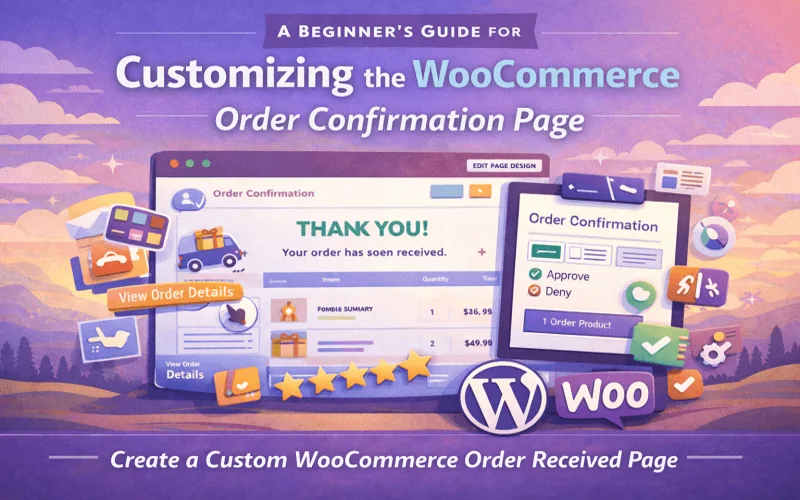
People often overlook what happens after the checkout process. Payment goes through, order is placed, and the customer lands on a plain screen that says thanks and little else. That page matters more than most store owners realize. The WooCommerce thank-you page is where reassurance occurs, confusion can be avoided, and you can quietly guide the buyer on what comes next. If you are new to WooCommerce, this page can feel locked down or too technical to touch, but it really is not. With the right approach, you can shape it without breaking your theme or digging through code files late at night.
This guide walks through how beginners can think about customizing that page, why it matters, and how plugins make it far more practical than manual edits. I will keep it grounded and real, not salesy, and yes, a few side thoughts will slip in along the way because that is how people actually explain things.
Why the Order Confirmation Page Deserves Attention
The WooCommerce thank you page is shown right after a customer finishes checkout. At that moment, the buyer is alert, sometimes relieved, sometimes anxious, wondering if the order really went through. If the page is bare or unclear, emails and support tickets follow.
A simple confirmation message is not always enough. Customers may want to see shipping expectations, download instructions, account links, or even next steps if the product requires approval or manual handling. A custom thank you page for WooCommerce helps fill in those gaps without forcing you to rebuild checkout entirely.
Another thing people forget is trust. When a page looks thoughtful and complete, customers feel more confident about buying again. That confidence is hard to measure but very easy to lose.
What WooCommerce Gives You by Default and Its Limits
Out of the box, WooCommerce shows a basic confirmation layout. Order number, payment status, billing details, and that is mostly it. For small stores, that might be fine, but the moment you sell different product types, it starts to feel rigid.
You cannot easily show different messages per product. You cannot redirect users to different pages based on payment method. Adding extra content usually means editing template files, which beginners should avoid unless they enjoy fixing broken layouts later.
This is where many store owners pause and think, maybe customization is not worth the effort. In reality, it is the method that is wrong, not the idea.
Why Plugins Beat Custom Code for Beginners
Editing theme files or writing PHP snippets sounds tempting when you read a short tutorial. The issue is maintenance. One update can overwrite changes or cause conflicts that are not obvious right away.
A plugin designed for thank you page control takes those technical risks away. Instead of altering templates directly, you work through settings, rules, and page builders. If something does not work, you disable a setting rather than undoing code.
For beginners, this matters a lot. You learn what works without locking yourself into fragile solutions. It also means you can experiment, which is something code-based edits rarely encourage.
Getting Started With a Thank You Page Plugin
Before anything else, the plugin needs to be installed. Most beginners worry that this step will be complicated, but it is very similar to any WooCommerce extension.
After installing and activating the plugin, you usually see a new menu inside WooCommerce settings or as its own tab. From there, you can create or assign a custom thank you page. You are not replacing checkout itself, just what appears after it.
Many plugins let you build pages using the WordPress editor. That means headings, text blocks, images, and shortcodes can be placed naturally. This is often the first moment beginners realize customization is not as scary as expected.
Creating Your First Custom Thank You Page
Start simple. Create a new page in WordPress and write a clear confirmation message. Thank the customer, confirm the order was received, and explain what happens next. That alone improves clarity.
Then connect that page to the checkout flow using the plugin settings. Once assigned, place a test order to see how it looks. Expect to tweak wording a few times. That is normal.
At this stage, you already have a custom thank you page for WooCommerce that feels intentional rather than generic.
Showing Different Content for Different Orders
One of the strongest reasons people customize the WooCommerce thank you page is conditional content. Not every order needs the same message.
For example, digital products may need download instructions. Physical goods may need shipping timelines. Manual services may require approval or follow-up steps. With conditional rules, you can show different thank you pages based on product, category, or even payment method.
This is where beginners often have an aha moment. Instead of cramming everything into one long page, you create focused experiences that feel personal without being complicated.
Using the Page to Reduce Support Requests
Support emails often start with simple questions. When will my order ship? Where do I download my file? Did my payment work?
Answering those questions on the order confirmation page saves time for everyone. It also makes your store feel more professional, even if you are a one-person operation.
A well-structured WooCommerce thank you page acts like a quiet support assistant. It does not interrupt, but it reassures.
Adding Upsells Without Seeming Pushy
Some store owners avoid adding promotions to confirmation pages because they fear it feels aggressive. The trick is subtlety.
Instead of discounts or popups, suggest helpful additions. If someone bought a camera, you can mention accessories. If someone booked a service, you can link to preparation guides.
This works best when the content feels relevant. Custom thank you pages, WooCommerce setups make this easier because you can target messages to specific orders rather than everyone.
Common Mistakes Beginners Make
One mistake is adding too much text. Long explanations overwhelm users who have just completed checkout. Keep sections short and scannable.
Another mistake is forgetting the mobile layout. Many orders come from phones. Always preview the page on smaller screens.
Finally, some people forget to test failed payments or alternative gateways. Make sure the experience makes sense even when payment is pending.
Keeping Things Flexible as Your Store Grows
What works today may not work six months from now. That is normal. The benefit of using a plugin-based setup is flexibility.
As you add products or change workflows, you can update rules and pages without rewriting everything. Beginners often underestimate how valuable that adaptability becomes later.
A custom thank you page for WooCommerce setups is not just about design. They are about control over post-purchase communication.
When to Revisit Your Thank You Page Strategy
If customers seem confused after checkout, revisit the page. If support emails increase, revisit it. In case you launch a new product type, revisit it.
The WooCommerce thank you page is not a one-time task. It evolves along with your store. Treat it like part of your customer experience, not a static confirmation screen.
Final Thoughts for Beginners
Customizing the order confirmation page does not require advanced skills. It requires intention. Once you understand what customers need at that moment, the tools make more sense.
Using a plugin keeps the process approachable and safe. You focus on content and flow rather than technical risk. Over time, you will likely find yourself refining messages and layouts naturally.
A thoughtful WooCommerce thank you page quietly improves trust, reduces friction, and sets the tone for future purchases. For beginners, that is one of the simplest wins you can implement without touching your theme files.